Get the helper Open app
New See what's new in DBH Insights

Your whole vSphere estate,
one browser tab.

DBH Insights reads inventory, capacity, health and performance from one or more vCenters and turns it into a live dashboard, a topology map, failure-impact answers, cluster capacity totals and 27 exportable sheets — without your credentials ever leaving your computer.

The app needs the free DBH Insights Helper running on your computer. Here's why.

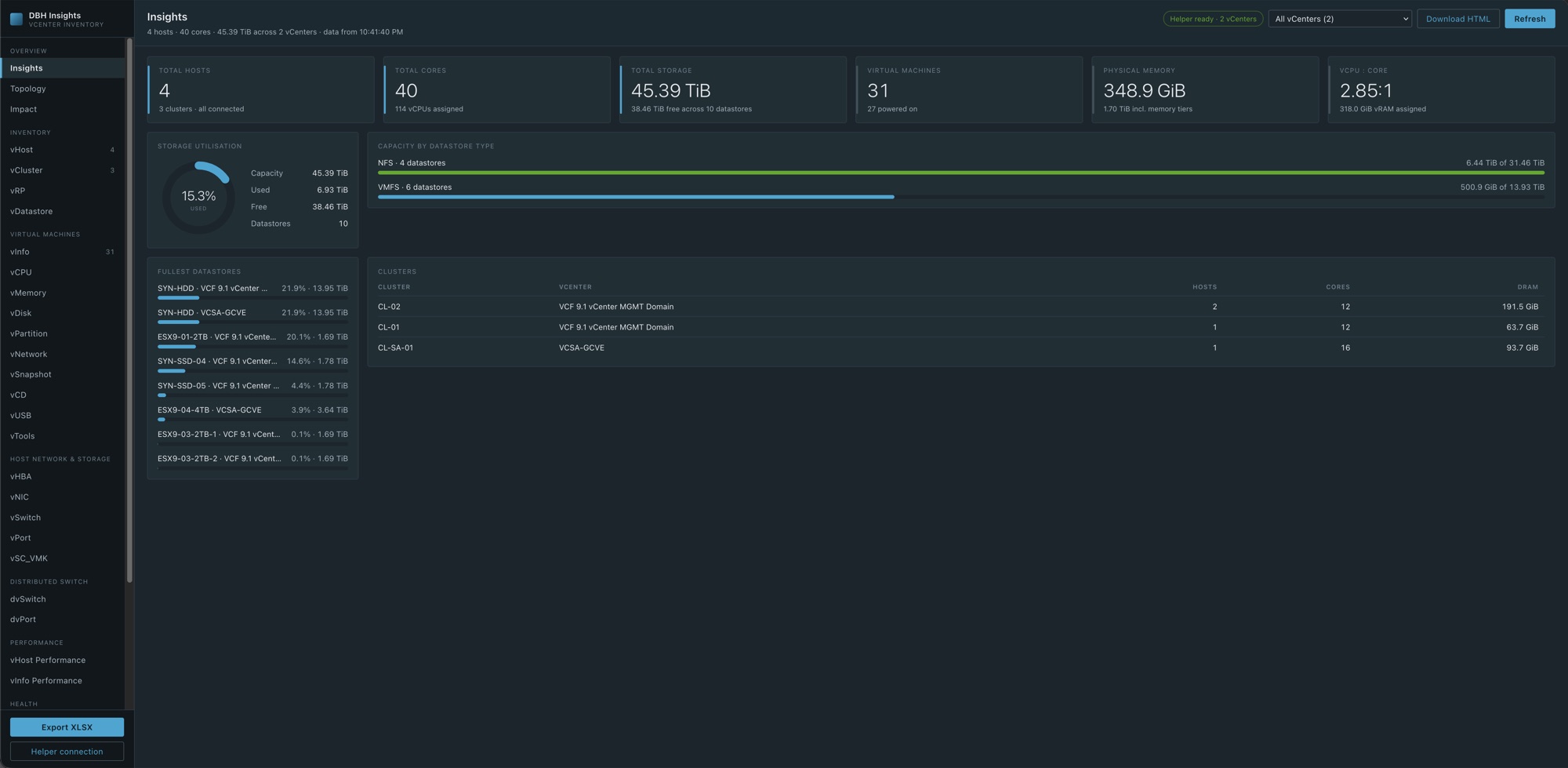
The Insights dashboard: total hosts, cores, storage, virtual machines, physical memory and vCPU-to-core ratio, with a storage gauge, capacity by datastore type, the fullest datastores and a cluster table
27inventory sheets in seven groups
REST + SOAPboth vCenter APIs, for the complete picture
Read-onlynothing in vCenter is ever changed
Localpasswords stay in your OS keychain

New in v0.5.0

Totals and rollups, built in

The numbers you used to work out in Excel after every export — now right on the screen.

New

Totals on every sheet

A totals row pinned to the bottom of every table. It covers all pages and follows your filter, so filter vInfo to one cluster and the totals follow.

  • Amounts summed: vCPUs, memory, GiB, VM counts
  • Usage percentages averaged
  • Free % and vCPUs per core worked out from the totals
  • Yes/no columns show how many are True
New

Group by any column

Turn a sheet into a summary: one row per cluster, host, datastore, power state, guest OS or VLAN, with a count and totals for each group.

  • VMs, vCPUs and storage per cluster
  • How many VMs run each guest OS
  • Sort, filter and page the groups
  • Each sheet remembers its grouping
New

Cluster Capacity

One row per cluster comparing what the hosts provide with what the VMs are assigned, under Overview and in the Excel export.

  • Hosts, cores and DRAM against VMs, vCPUs and vRAM
  • vCPU-to-core ratio and running vRAM as a % of DRAM
  • VM storage and datastore free space
  • N+1 check: can it lose its biggest host?

Try it in the app Read the release notes

Features

Everything you'd export by hand, already laid out

Point it at your vCenters and get the answers operations, capacity and audit teams keep asking for.

Insights dashboard

Hosts, cores, storage, VMs, physical memory and the vCPU-to-core ratio at a glance, with the fullest datastores and every cluster. Save it as a standalone HTML report.

Topology map

Hosts grouped by cluster, their datastores, and a line for every mount. Hover to isolate one path; download the map to share it.

Failure impact

"What if this host or datastore fails?" See the VMs that depend on it, whether HA can restart them, whether the cluster has room, and storage only that host can reach.

27 inventory sheets

VMs, CPU, memory, disks, partitions, networks, snapshots, tools, hosts, clusters, resource pools, datastores, switches and licences. Sort, filter, total and group them, plus a capacity summary for every cluster.

Performance

The newest CPU, memory, network and disk sample for every host and every powered-on VM, straight from vCenter's performance counters.

Health checks

Flags hosts with no NTP server or a stopped NTP service, VMs whose folder doesn't match their name, CD-ROMs left connected, and active snapshots.

One-click Excel export

Every sheet in a single XLSX workbook with frozen headers, filters and real dates, built in your browser.

Many vCenters

See every vCenter together or one at a time. If one can't be reached, you get a warning and the rest still load.

API Explorer

Send any read-only REST or SOAP request to vCenter and read the raw response — handy before building a sheet of your own.

Tour

See it with real data

Screens from a lab with two vCenters, four ESXi hosts and 31 VMs.

The Insights dashboard with headline numbers, storage utilisation and clusters
Insights: headline numbers for every selected vCenter, with storage and cluster detail.

How it works

A website for the views, a tiny helper for the connection

Browsers can't reach a vCenter on your network or trust its self-signed certificate, and you shouldn't hand your vCenter password to a website. So a small helper on your own computer does the talking, and the website never sees your password.

Your browser DBH Insights website Dashboards, sheets and exports. Updates reach everyone the moment they're published.
Your computer DBH Insights Helper Holds the vCenter sessions and passes read-only requests through.
Your network vCenter REST and SOAP APIs, self-signed certificates welcome.
  1. Install the helper

    A small desktop app for macOS, Windows and Linux. It lives in the menu bar or system tray and starts listening on 127.0.0.1.
    Download the helper
  2. Add your vCenters

    Enter each vCenter's address and account once and click Save & test. Passwords go straight into the operating system's keychain.

  3. Open DBH Insights

    The app finds the helper by itself, shows which vCenters are connected, and loads the dashboard.

    Open the app
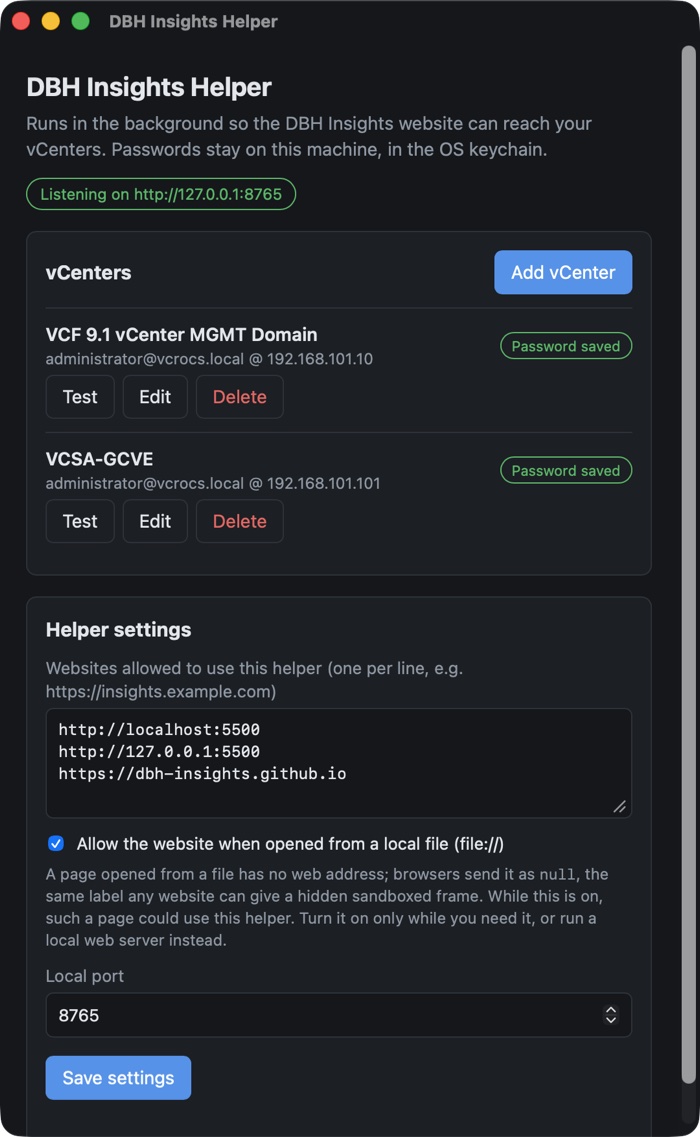
The DBH Insights Helper window listing two vCenters with Test, Edit and Delete buttons, the websites allowed to use it, and the local port
The helper: vCenters, allowed websites and port, all in one window.

Security

Built to look, never to touch

Read-only by design

REST requests are GET only and SOAP is limited to a short list of read operations. There's no setting that turns writes on.

Passwords stay home

Credentials live in macOS Keychain, Windows Credential Manager or Linux Secret Service. They're never written to disk or sent to the website.

Local only

The helper listens on 127.0.0.1 alone and rejects requests addressed to any other host name, which blocks DNS-rebinding tricks.

Only sites you trust

Only websites on the helper's allow list can use it. Everyone else is told the helper exists, and nothing more.

Download

Get the DBH Insights Helper

Free, and the only thing you install. Pick your platform, add your vCenters, and the website does the rest.

What's in this release?

Release notes

What's changed

New features, improvements and fixes, newest first.

Ready to look inside your vCenters?

Start the helper, add a vCenter, and open the app.

Open DBH Insights